How i: Add 'Reply via Email' links
Lately I’ve been spending more time on my programming side projects, where I learn something new every day. I’ve also been trying to make my code open-source to give back to the community a little. Right now I’m working on a PDF file manager that I’m really proud of, and I’ll talk more about it later.
I love it when I get emails from my readers. Sometimes they just want to say hi, and sometimes they want to send a simple private reply. I think this platform is very flexible and allows you to implement this in several ways, so I want to explain them here in case someone wants to add them to their blog.
All of these solutions use mailto links, which open the default email client ready to reply. Not everyone likes that, but I think it’s the easiest way to respond to a blog post.
Let’s get into it. There are 3 ways to do it.
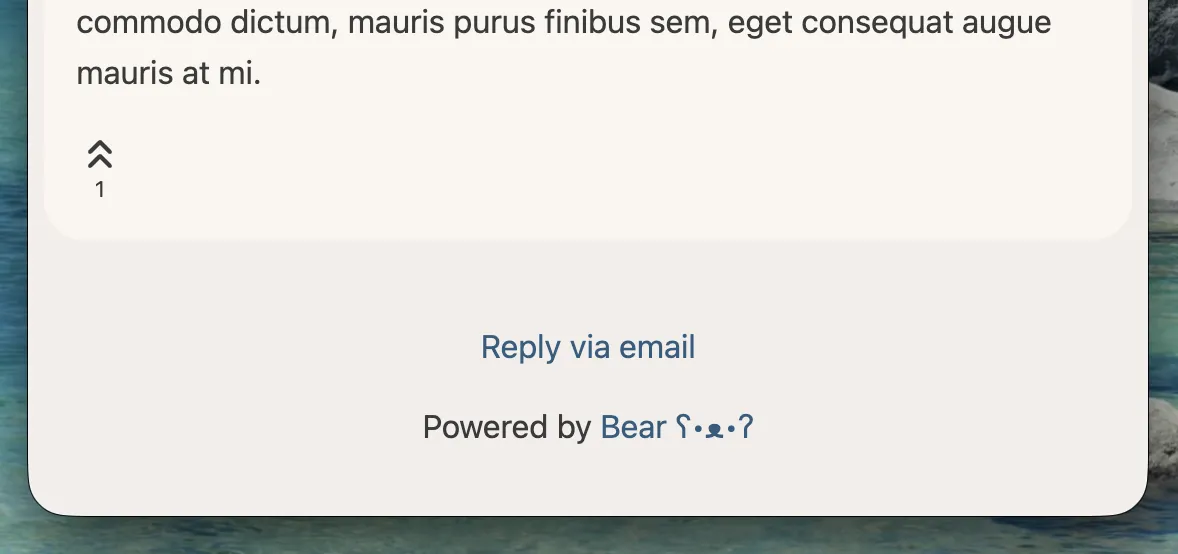
Option 1: Footer
This is the simplest option. Basically you go to Settings > Directives > Footer directive and add something like this, adjusting the email:
<a
   href="mailto:contact@example.com">Reply via email
</a>
This will generate a link in the footer that opens directly with your email. The downside is that it doesn’t include the post title, which can be important sometimes.
Option 2: Inside the post
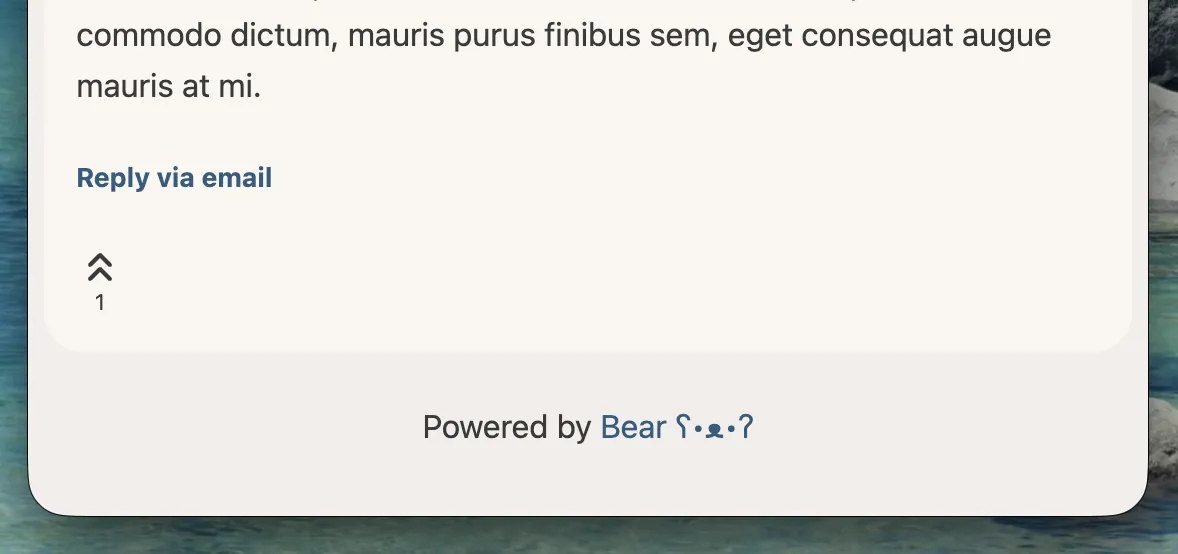
A step above is placing the link inside the post itself. I really like this one because it doesn’t require extra code outside the post. At the end of your post, you simply add an HTML snippet like this:
<h5>
   <a href="mailto:contact@example.com?subject=Re:%20{{ post_title }}">
      Reply via email
   </a>
</h5>
This will generate a link at the end of the post, and I love it because you can embed the post title in the email subject using BearBlog variables.
Bonus: You can include this code inside your post template so that every new post loads it automatically and you never forget to add it.
Bonus 2: You can style it by modifying the CSS selector .main > h5 > a.
Option 3: Code
Option 2 has one drawback for me: if you already have dozens of posts, you’d have to edit them one by one. And if you want to change your email address or the button text, you’d have to update them all individually. So I wrote a script that solves exactly that problem.
<script
  src="https://cdn.jsdelivr.net/gh/melvinsalas/bear-plugins@master/plugins/reply.js"
  data-email="contact@example.com"
  data-text="Reply via email">
</script>
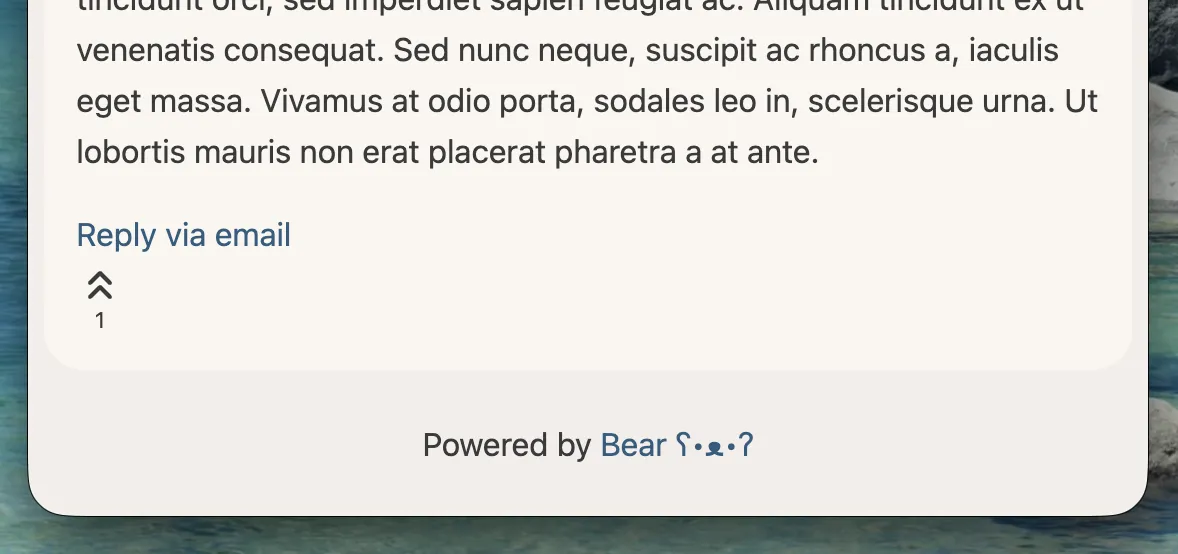
I’ve created a script that adds the same link at the end of each post, but this time you can set your email globally and update it whenever you want. Like Option 1, you add the script in Settings > Directives, and you can change the link text by modifying data-text.
Finally, you can add custom styles in your template using these CSS classes:
.reply-via-email-wrapper { }
.reply-via-email { }
You can find the documentation here: github.com/melvinsalas/bear-plugins